
Send the sample request
On first launch Mariner creates a workspace called Personal with a collection named Welcome to Mariner: requests against httpbin.org that echo back whatever you send — three at the root, and a folder per surface of the editor (Auth, Variables, Body, Post-Response, Contract, Response states). The first one is already open.
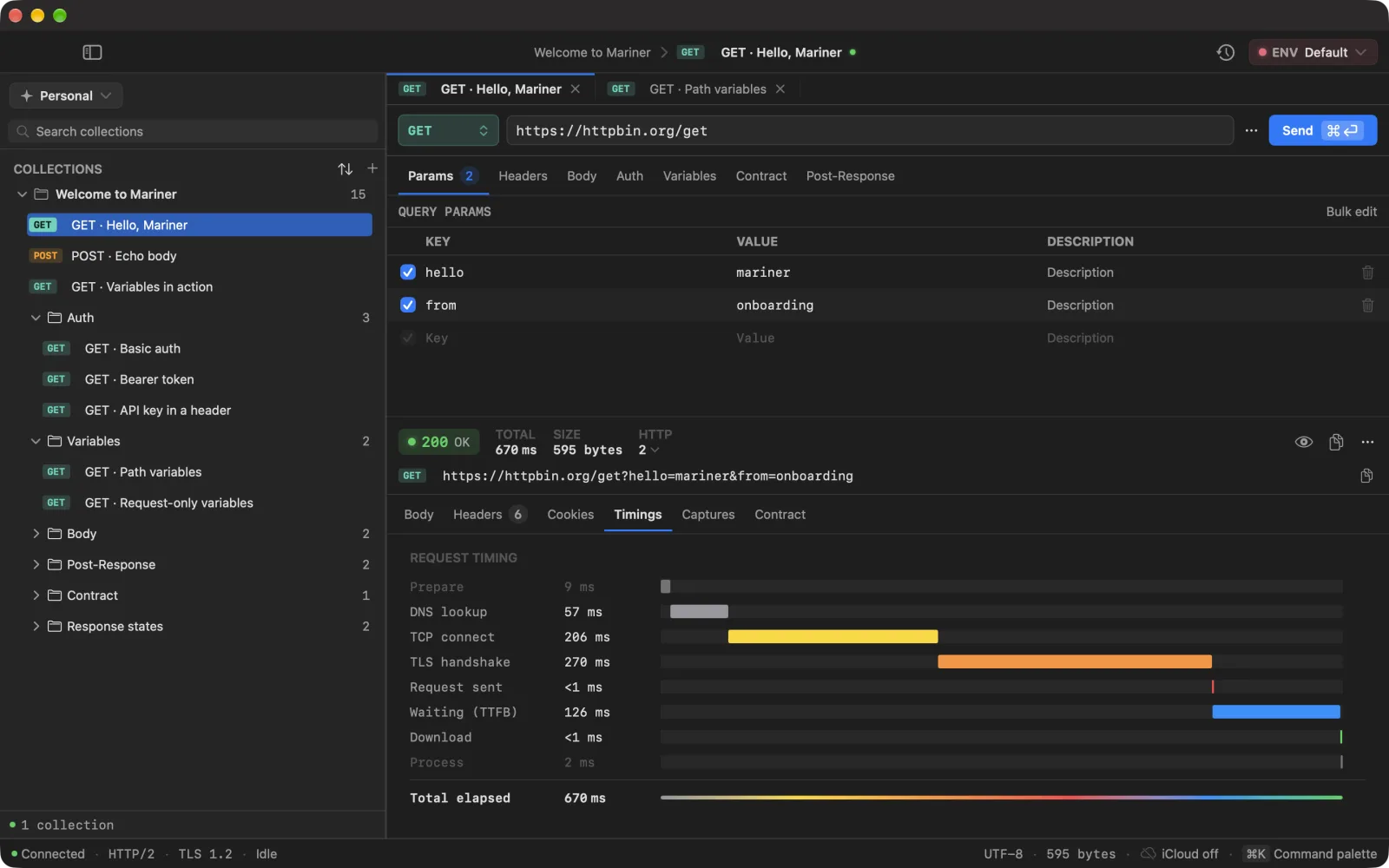
- Press ⌘↵ (or click Send). The response lands in the lower pane with its status, size and timing.
- Open the Timings tab to see where the milliseconds went — DNS, TCP, TLS, waiting, download.
- Open the second request, POST · Echo body, and press ⌘↵ again: the JSON body you see in the editor comes back in the response.
- Open GET · Variables in action. Its URL starts with
{{baseUrl}}, a variable already defined in the Default environment. Hover the token to see what it resolves to.
The request editor
The bar above the editor reads left to right: method, URL, the ⋯ menu, Send. Click into the URL and the field stops truncating: it wraps and grows downward over the pane, so a long URL is readable while you edit it and compact again as soon as you leave.
Under it sit the resolved URL — what will actually go on the wire — and a {} chip with the number of tokens the request depends on. Open the chip for the whole URL over as many lines as it needs, and a list of every {{token}} and :slug with what each one contributes; see Set up environments.
- Params — query parameters, plus anything you typed straight into the URL (shown read-only), plus path variables such as
:id. - Headers — key/value rows with autocomplete for standard header names. Headers Mariner adds on its own (
Content-Typefor a JSON body, for example) appear in a read-only temporary headers section. - Body — none, raw, JSON, form-urlencoded or multipart. JSON gets a formatter and a live valid/invalid indicator; multipart lets you attach files.
- Auth — see Authentication.
- Variables — values that belong to this request only; see Variables and secrets.
- Contract — the shape every response to this request is measured against; see Contracts.
- Post-Response — rules that copy values out of the response into variables.
Every key/value table has a Bulk edit button: paste key: value lines and apply with ⌘↵.
The response pane
- Body — Pretty, Raw, Tree (JSON only) and Preview (HTML). ⌘F searches inside the body; ⌘G jumps to the next match. Large bodies are truncated in the viewer, never in the file you save with Save body to file….
- Headers and Cookies — one row each, with counts on the tab.
- Timings — the waterfall. Grey phases are Mariner’s own preparation; coloured ones are the network.
- Captures — what the Post-Response rules extracted this time.
The strip above the tabs shows the status, total time, whether the connection was reused, HTTP version, remote IP, size, gzip savings, and — when the server sends them — rate-limit headers and the clock skew between the server and your Mac.
Cold start and cancel
Right-click Send for Send (cold start): Mariner drops the cached connection so the next timing includes DNS, TCP and TLS from scratch. The ⋯ menu also has a persistent Cold mode for a request that should never hit a cache.
While a request runs, Send becomes Cancel. Each tab has its own runner, so cancelling one never touches another.
Tabs and the palette
- ⌘T creates a request in the active collection.
- Requests open in tabs: ⌘1–⌘9 jump to a tab, ⌘⌥→ / ⌘⌥← move between them, ⌘W closes the current one. Twenty tabs is the ceiling: each one holds on to its last response, so the cap is what stops a long session from adding up. Mariner turns down the twenty-first rather than closing one of yours.
- ⌘⌥9 hides the editor, ⌘⌥0 hides the response, so either can take the whole window.
- ⌘K opens the command palette: every request, collection, environment and action in one fuzzy-searched list. It is the fastest way to send a request you have not opened yet.